
Insurers are betting you won't appeal. We keep making it easier to prove them wrong.
Now Your AI Can Work With Ours
Already asking Claude, ChatGPT or another assistant about a denial? Connect it to us once, and it can answer from our appeal information and help you start an appeal from your chat. Free, no sign-in.
Rather not use an AI assistant? That's fine too. Start an appeal right here, like always.
Plug Us In With MCP
MCP (Model Context Protocol) is an open standard that lets AI assistants use tools from other sites. Think of it as a plug: add our address once, and when you ask about a denial, your assistant can check with us instead of answering only from what it already knows.
- Answers you can check. Its answers can link back to our pages, so you can see the source.
- With your OK. We ask your assistant to check with you before it sends us your letter, and Claude and ChatGPT ask your permission first unless you've set them to always allow it.
- You send it. Nothing goes to your insurer until you edit and send the letter yourself.
- Free. No account, key or password. To get letters back in your chat, we ask for your email address.
Three Ways It Works With Us
Pick what you're comfortable with.
- Look things up. Ask about a denial, and your assistant can check our guides, state pages and insurer appeal contacts.
- Start on our site. Your assistant gives you the link, and you upload or paste your letter yourself. Or, with your OK, it fills in our form with your letter for you to check and finish here.
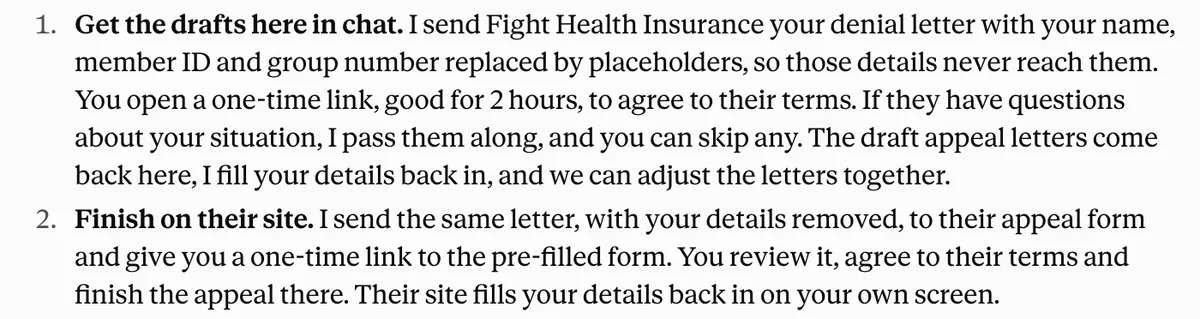
- Get letters back in your chat. With your OK, it sends us your letter. Once you agree on our page, it can bring up to three draft appeal letters back to your chat.
Set It Up Once
Add this address to your assistant as a custom connector:
https://www.fighthealthinsurance.com/mcp
Step by step: Claude · ChatGPT · Other apps
Added us before October 7, 2026? Refresh the connector, or remove and add it again, so your assistant sees the newer tools.
Set it up in Claude
Works on every Claude plan, including the free one. On the free plan you can add one custom connector, so if you already have one, you'd need to remove it first. On a Team or Enterprise plan, an Owner adds it for the organization first, then you connect to it under Customize, then Connectors. Add it on the web or in the desktop app, and it shows up in the phone apps too.
That link opens Claude with the name and address filled in. Claude notes that they came from a link: check them and continue. If you're signed out, it asks you to sign in first.
Team or Enterprise Owner? Add it for your organization
To do it by hand:
-
Open Customize, then Connectors, press + Add and choose Add custom connector.

Customize, Connectors, then + Add. -
Name it Fight Health Insurance, paste the address above as the MCP server URL and press Continue. If Claude shows more screens about authentication, press Continue, choose No sign in under Authentication and press Add. There is nothing to sign in to.
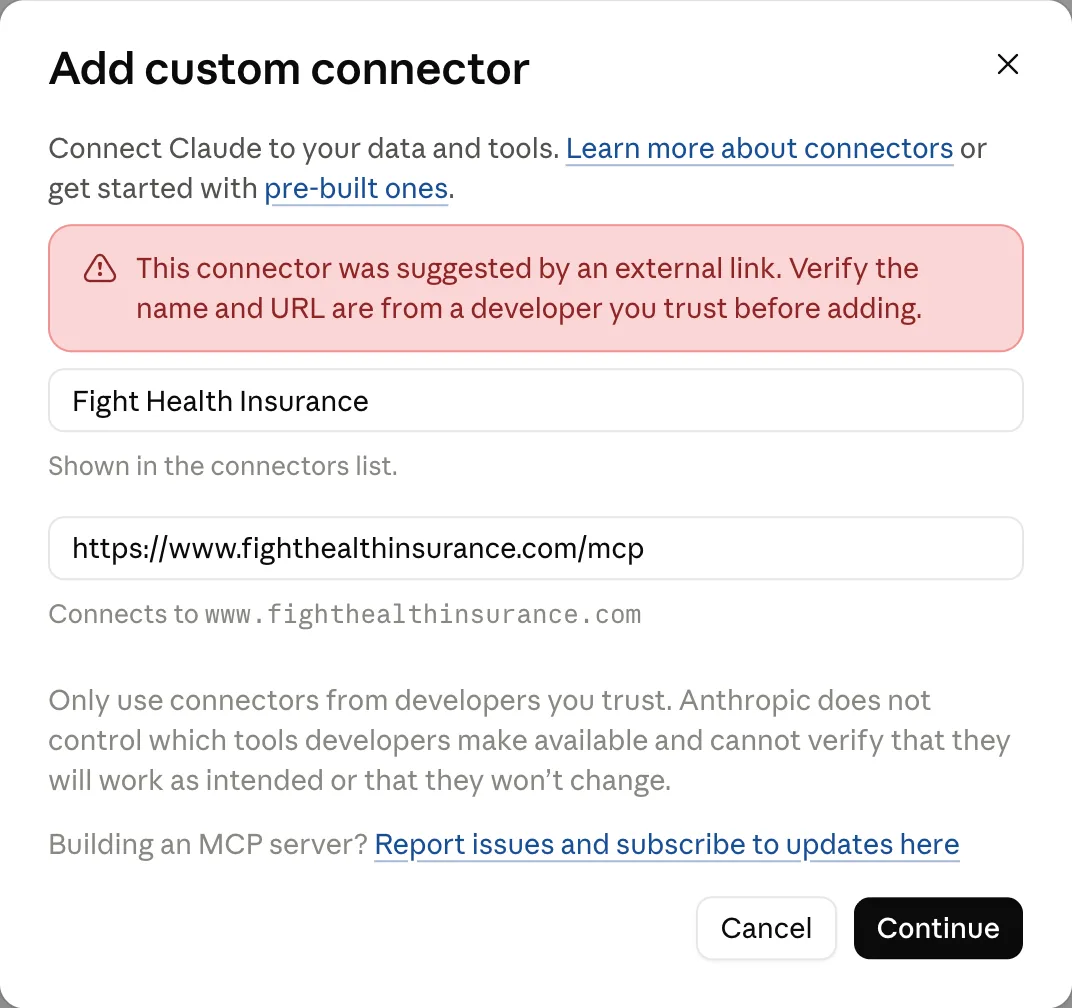
Claude notes that a link filled these in. The name and the address, nothing else. -
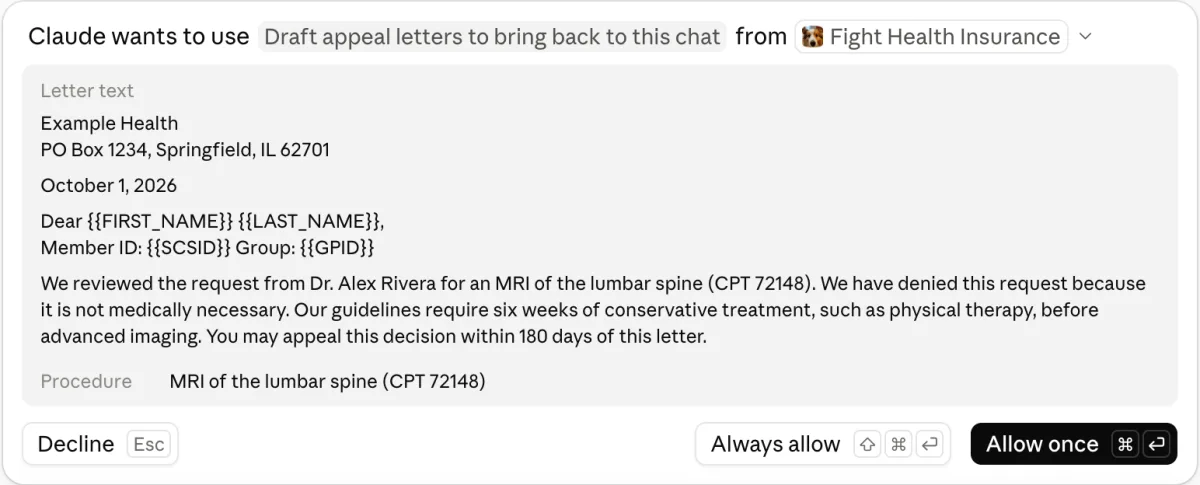
Open the connector's page and check Tool permissions. It lists 14 tools. Eleven are read-only: they look things up, give you a link, or check on letters being drafted. Three send something to us when you start an appeal: Fill in an appeal form for the person to check, Draft appeal letters to bring back to this chat, and Send the person's answers and start the letters. If you want Claude to ask you every time before it uses those three, leave them on Needs approval.
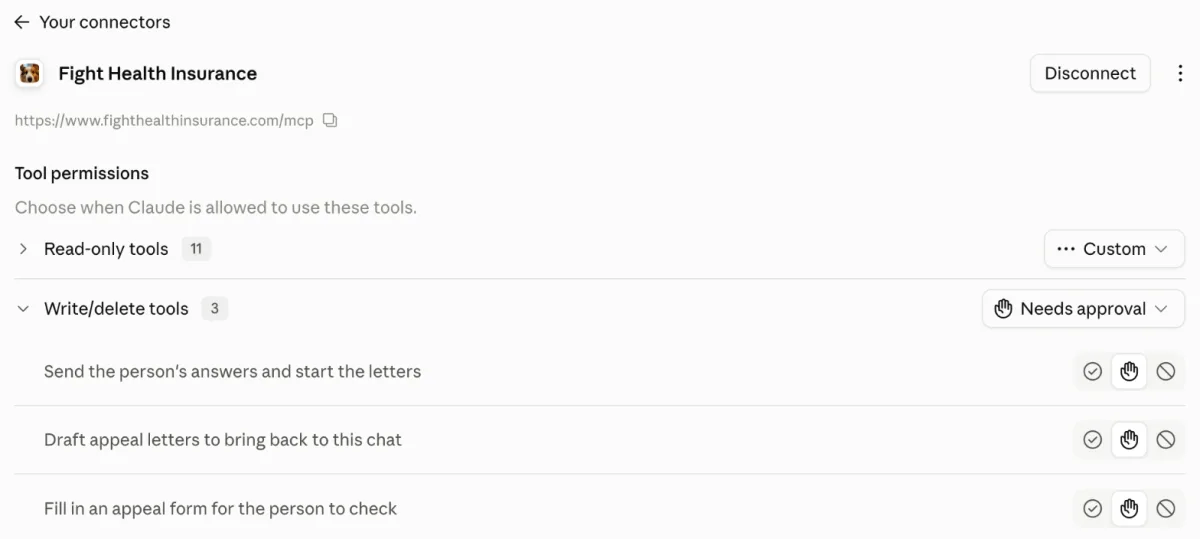
The three that send us something, on Needs approval. -
In a chat, open the + menu, choose Connectors and turn Fight Health Insurance on. Then ask your question. Claude asks before each tool it uses; Always allow stops the asking for that tool.

Claude asks before it uses a tool. A look-up needs only a few words, like "MRI".
Set it up in ChatGPT
You add it in ChatGPT on the web, as a custom MCP server. It works on paid plans: Plus, Pro, Business, Enterprise and Edu. On a Business, Enterprise or Edu workspace, your admin may need to allow custom MCP servers first. OpenAI has been moving these menus around, so yours may look a little different.
-
Open ChatGPT's Plugins page (chatgpt.com/plugins). Press Add, or +, and choose Create custom MCP server. It may say Add custom MCP server.
If you don't see that option, open Settings, then Security and login, and turn on Developer mode.
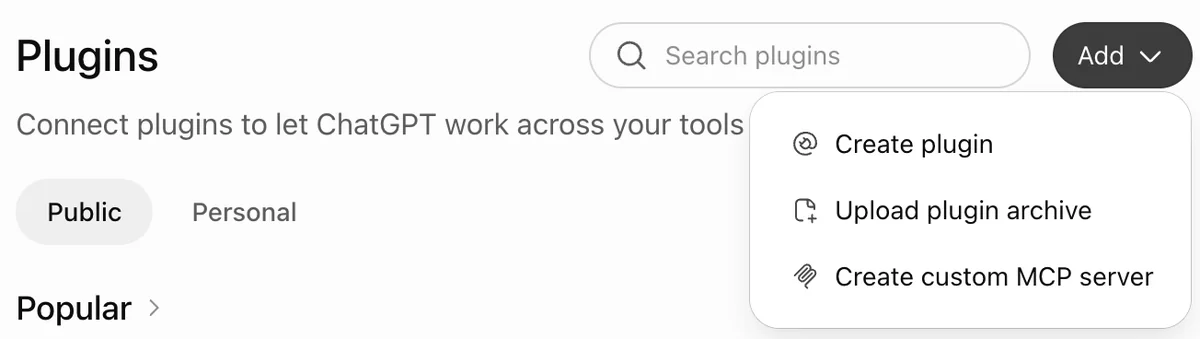
Plugins, Add, then Create custom MCP server. -
Name it Fight Health Insurance and paste the address above as the server URL. Authentication starts on OAuth: switch it to No authentication. Tick "I understand and want to continue" and press Create as a plugin. The icon and description are optional.
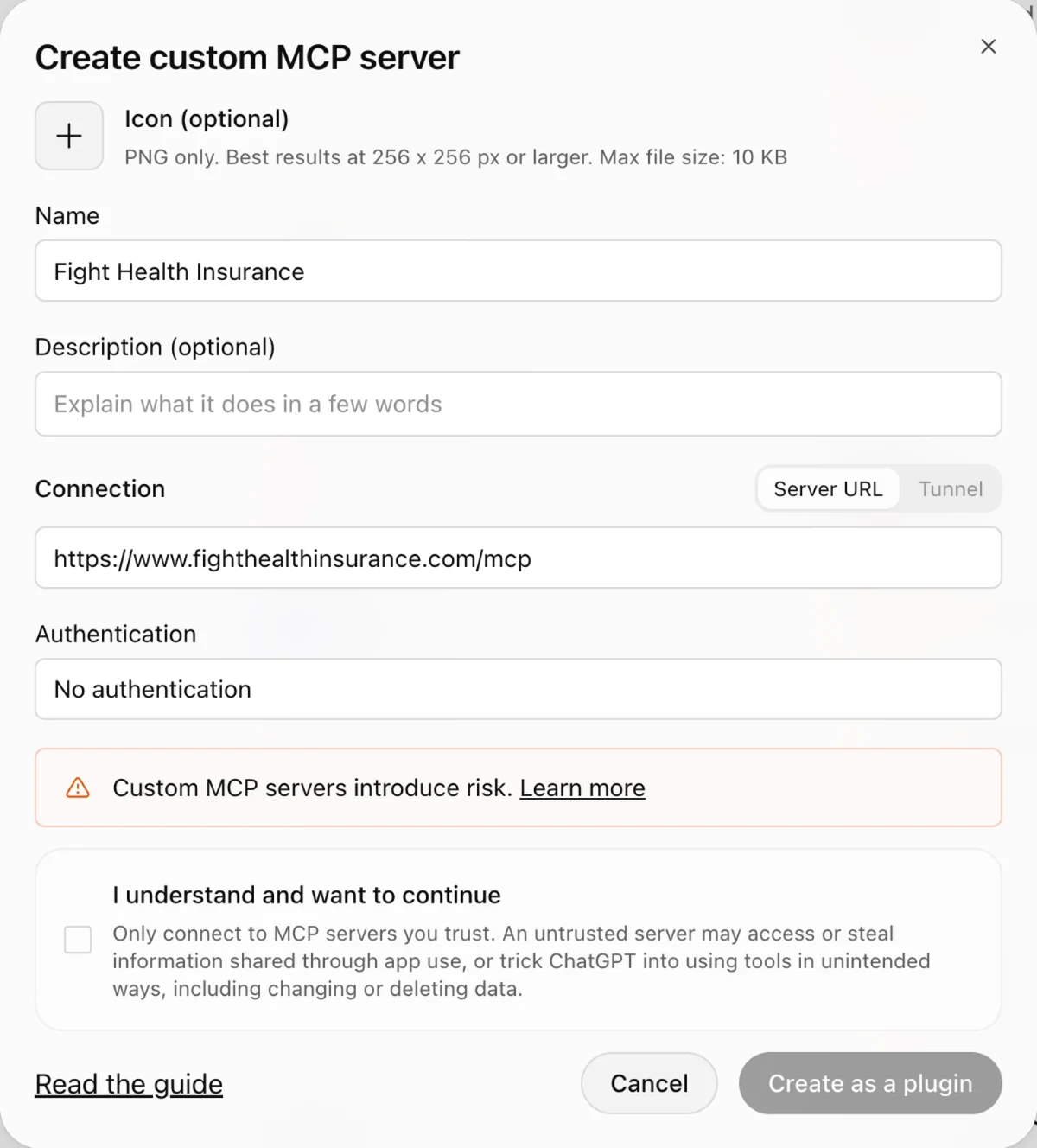
Name, server URL and No authentication; then tick the box and create it. - Open the Personal tab on the Plugins page, find Fight Health Insurance and install it, if it isn't installed already.
- In each chat, type @ and pick Fight Health Insurance, or choose it from the + menu. A small Fight Health Insurance tag appears on your message. Then ask your question. ChatGPT asks before it uses one of the tools that send us something; the look-up tools run on their own.
Other assistants and your own models
Anything that speaks MCP works. Look for a setting called Connectors, Integrations, Tools, Plugins, Extensions or MCP servers, with an option to add a custom or remote server. If you can't find it, search your app's help pages for "MCP".
Wherever it asks, enter:
- Address:
https://www.fighthealthinsurance.com/mcp - Type or transport: Streamable HTTP. Some apps call it HTTP, or just URL.
- Sign-in or authentication: none.
Some apps can only use MCP servers that run on your own computer. Those can't connect to ours directly.
Two we have tried from the command line, and one from VS Code's own docs:
- Claude Code:
claude mcp add --transport http fight-health-insurance https://www.fighthealthinsurance.com/mcp - Codex CLI:
codex mcp add fight-health-insurance --url https://www.fighthealthinsurance.com/mcp - VS Code (1.100 or later, with Copilot):
code --add-mcp "{\"name\":\"fight-health-insurance\",\"type\":\"http\",\"url\":\"https://www.fighthealthinsurance.com/mcp\"}"
Apps that run open-weight models on your own machine take MCP servers too. Each app's guide shows where to paste the address: LM Studio, Open WebUI, Jan and LibreChat. Ollama on its own has no MCP support; Ollama users can connect through a front end such as Open WebUI. Two things to know: the model has to support tool calling, and small local models sometimes skip the tools or misread what they return, so check the links in the answer against this site.
If an answer doesn't link back to this site, try naming us: "Using Fight Health Insurance, what does 'not medically necessary' mean?"
Starting an appeal from your chat
There are three ways. Pick the one you're comfortable with.
The simplest: ask your assistant for the link to start an appeal here, then upload or paste your letter on our site yourself. Your assistant doesn't send us your letter.
For the other two, share your denial letter with your assistant and ask it to help you appeal. Anything you share in the chat, including your letter, also goes to the company that makes your assistant, under its own privacy policy. We ask your assistant to check with you before it sends us your letter. We also ask it to offer to swap your name, member ID and group number for placeholders and to leave out your address, phone number and date of birth. Say yes to that. If you agree, it sends us the letter, plus a few words on what was denied and the condition if it has them, and gives you a link. We ask it to tell you what it sent, too.
That link opens our page. It works only in the browser where you first open it, so open it in the browser you'll finish in. A link to finish on our site opens once. A link for letters in your chat opens again in that browser until you press Agree or Finish on this site instead. It lasts two hours. The two hours start when your assistant makes the link, not when you open it.
Get letters back in your chat
We draft appeal letters, and your assistant can bring them back to the chat.
- Open the link and press Open my appeal form. Our page shows the letter your assistant sent.
- Check the letter. Under About you, fill in your name, email address, street address and ZIP code, then press Remove personal details. We try to keep your name and street address in your browser. Read the letter again and take out anything it missed, such as your member ID.
- Say who the appeal is for: you, or someone you're helping who asked you to and is fine with us keeping it as our privacy policy says.
- Tick the four boxes, which say: you've taken your personal details out of the letter, you've read our privacy policy, you agree to our terms, and the appeal is your own or for someone who asked you to. Then tick "I'm not a robot" if it shows.
- Under Optional choices, "Use outside AI services to get more appeal drafts" is ticked by default. While it's ticked, your letter is also shared with those services, under their own terms. You can untick it.
- Press Agree and go back to my chat. Then tell your assistant you're done.
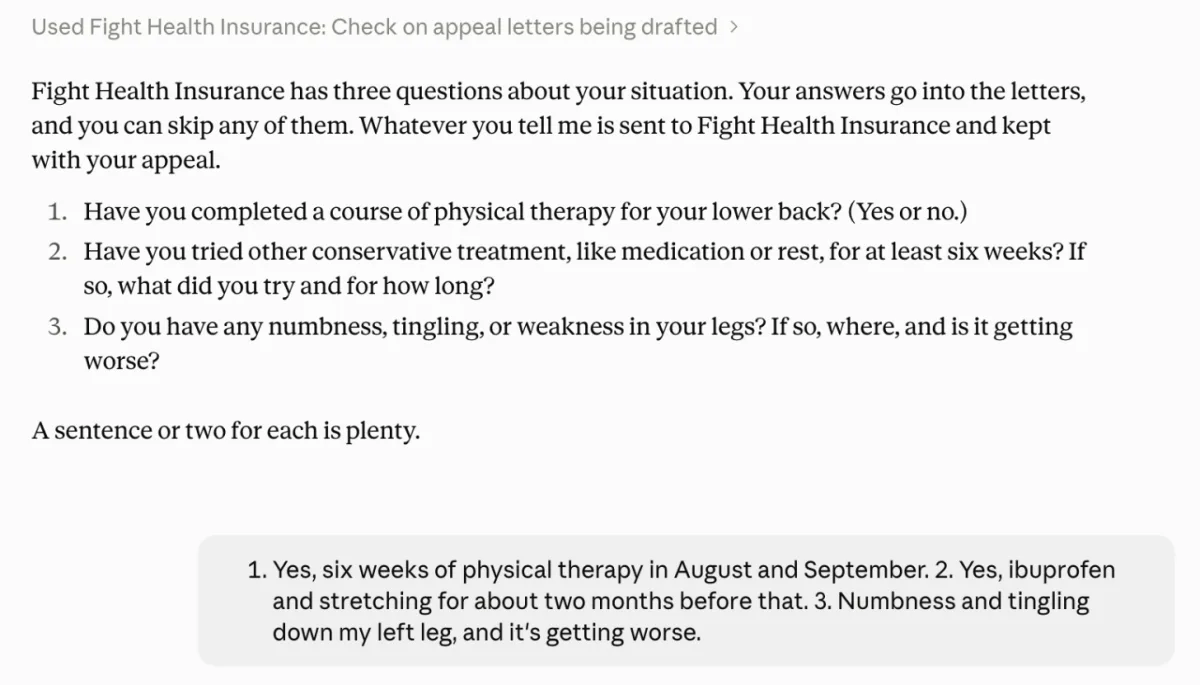
- We read the letter and may have a few questions. Your assistant is asked to put them to you and send only what you say. You can skip any.
- Up to three draft letters come back to the chat, usually in a few minutes. Where a letter needs your name or member ID, it should have a placeholder. Your assistant is asked to fill those in from your chat, or ask you, and not to send them to us.
- Nothing is sent to your insurer. Read the letters, check the details, pick one, edit it and send it yourself.
Your assistant can collect the letters for a day after you agree. We also email you a link to finish on our site instead. It asks for your email address and works for 30 days.
Changed your mind on our page? Finish on this site instead opens our usual appeal form with your letter in it.

Finish on our site
- Open the link and press Open my appeal form. Your letter is already in the box.
- Check it, remove personal details and go through the usual steps here. "Use outside AI services to get more appeal drafts" is ticked by default here too, and you can untick it.
- Nothing is saved as an appeal until you submit the form yourself.
Sometimes we can't draft letters for a chat, for example when we've reached our daily limit. When that happens, the link opens our appeal form with your letter in it instead, so you can finish here.
What it can do
Ask the way you'd ask a person. A few to try:
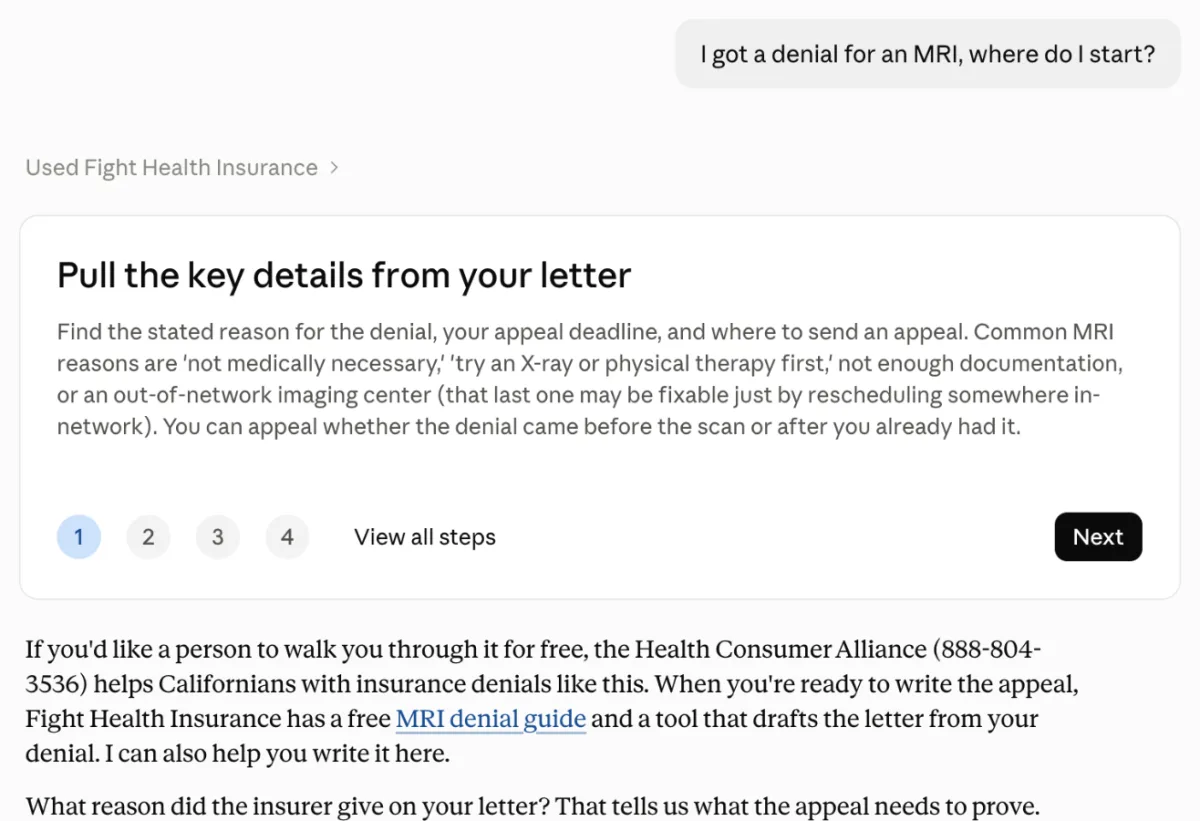
- "I got a denial for an MRI, where do I start?"
- "What does 'not medically necessary' mean?"
- "Who can help with an insurance complaint in Ohio?"
- "Here's my denial letter. Can Fight Health Insurance help me appeal it?"
For the first one, the assistant can look up what to gather for an appeal, our guide for MRI denials and the link to start one here, and answer with those links. Everything it looks up is public information from this site.
Your rights and deadlines
Which appeal law covers your kind of plan, the usual deadlines, and what to have ready before you start.
Your state
Who regulates health insurance where you live and who gives free help there.
Your insurer
Where a health insurer takes appeals: portal, fax, mailing address, email and phone, with the insurer's own page as the source.
The denial's wording
What a reason like "not medically necessary" means, why insurers use it and how people answer it.
Treatment guides and money
Our guide to appealing a denial of a specific treatment, drug or test, and copay foundations, drug-maker programs and safety-net programs that can help pay.
This site's pages
A search of the guides, FAQs, state pages, blog posts and glossary, and most of the site's public pages read as plain text. Every result links back here.
Start an appeal
With your OK, send us your letter and finish on our site, or get draft letters back in the chat. How that works
It is general information, not legal or medical advice.
Privacy and limits
What to share, and what to keep out
For looking things up, a few words is all your assistant needs, like "MRI", "migraine" or your state. Keep everything else personal out of these tools: your name, member ID and medical history.
The only tools that take your denial letter are the ones that start an appeal. We ask your assistant to check with you before it uses them, and to offer to take your personal details out of the letter first. Claude and ChatGPT ask your permission too, unless you've told them not to. If the letter still has your name or member ID in it when your assistant sends it, we receive those too. You can take them out on our page before anything is saved as an appeal. Your assistant is told the same when it connects: keep names, member IDs and other medical history out, and send the letter and your answers to our questions only when you agree.
What we keep
- We keep what your assistant sent encrypted, with a key only the link carries. We delete it when you press Open my appeal form (to finish on our site) or Agree or Finish on this site instead (for letters in your chat), or soon after the two hours if you don't. Database backups made before then keep a locked copy, which can't be opened without the link, until the backups expire.
- When you agree on our page, or submit our form, the letter in the box becomes an appeal we keep, like any appeal made on this site. We use appeals to improve our AI, and people on our team may read them. When you agree, we also keep the few words your assistant sent on what was denied and the condition, and add them to your appeal when the letter doesn't say. They show on our page under the letter, where you can change or clear them.
- We keep a record of the boxes you ticked and which versions of our terms and privacy policy you agreed to, as we do for every appeal. When letters are drafted for your chat, that record also says who the appeal is for, and we keep your answers to our questions with the appeal.
- With your appeal we keep a scrambled version of your email (a hash), so you can ask us to remove your data later and so the emailed link can check it's you. If you tick Keep my email, we keep your real email so we can check in about your appeal. If you tick Send me news, we keep your name and email for our mailing list. On our usual form, choosing follow-ups or our fax service also keeps your real email.
- "Use outside AI services to get more appeal drafts" is ticked by default on our page. While it's ticked, your letter is also shared with those services, under their own terms. You can untick it.
What your assistant itself keeps from a chat is up to its maker: see Anthropic's privacy policy or OpenAI's. What we keep is in our privacy policy.
Limits
- Your assistant decides when to use our tools and how to word its answer. We can ask it to do things, like check with you first, but we can't make it. Follow the links and check what it says against this site.
- The letters are drafts for you to read, check, edit and send yourself. Nothing is sent to your insurer.
- The letters are written as the patient, even when you're helping someone else, so check that they read right before anyone sends them.
- There's a daily limit on letters drafted for chats. Past it, the link opens our form instead.
- What your assistant finds here is general information, not legal or medical advice.
- It's for your own appeal, or for someone you're helping who asked you to. Doctors, therapists and offices have our professional version.
- Apps rename and move their menus often. Steps and screenshots last checked on October 7, 2026.
Something look different? Let us know, and we'll update this page.